
Persatuan Kenyah Badeng Sarawak
KEBANA Digital
SYSTEM DOCUMENTATION
User Operations
Manual
A comprehensive administrator and user operational guide for managing community records, approvals, finance, events, announcements, and AI-driven document search RAG utilities.
Document Version
v1.0 — June 2026
Date of Publication
8 June 2026
1. Introduction
1.1 About KEBANA Digital Management System (KDMS)
The KEBANA Digital Management System (KDMS) is a tailored administrative portal built specifically for the Persatuan Kenyah Badeng Sarawak (KEBANA). The system serves as the centralized digital backbone for the association, automating community record-keeping, branching governance, multi-tier program approval pipelines, financial ledgering, document archival, and real-time internal communications.
Core Pillars of KDMS
KDMS relies on modular separation of duties across Cawangan (Branch) and Pusat (HQ) levels, facilitating digital accountability and transparency while eliminating structural administrative overhead.
1.2 Technical System Requirements
KDMS is built as a lightweight, performant PHP-driven web platform. It runs natively across any modern, standard browser without demanding localized installations.
Supported Browsers
- Google Chrome (v100+)
- Mozilla Firefox (v98+)
- Microsoft Edge (v100+)
- Apple Safari (v15+)
Hardware Guidelines
- Desktop: Min 4GB RAM, stable internet.
- Mobile (OCR/Portal): iOS 14+ or Android 9.0+, working camera for scanning MyKad.
1.3 User Role Mapping & Access Control
KDMS enforces strict role-based access controls (RBAC) segregated across Pusat (Central HQ) and Cawangan (Branch) levels. The system contains 12 defined roles, mapping privileges across distinct modules:
| Level | Role ID | Role Title (Malay) | Privilege Scope |
|---|---|---|---|
| Pusat | 888 | Super Admin | Global oversight. User CRUD, system configuration, audit logs. |
| Pusat | 1 | Presiden | Global Read. Final approval authority for events and Central finances. |
| Pusat | 4 | Setiausaha Pusat | Global secretary. Document AI archives, central announcements, member review. |
| Pusat | 6 | Bendahari Kehormat | Global treasurer. Budget configurations, central transactions, global logs. |
| Cawangan | 11 | Pengerusi Cawangan | Branch leader. Reviews and signs off on local events before Pusat review. |
| Cawangan | 33 | Setiausaha Cawangan | Branch secretary. Add local members, submit event proposals. |
| Cawangan | 55 | Bendahari Cawangan | Branch treasurer. Record local expenses, manage branch ledger accounts. |
2. Getting Started
2.1 Logging In
To access the administrative dashboard, visit the login URL directly: /login. Enter your registered email or username and password, then click "Log Masuk".
Keep Me Logged In
Check "Ingat Saya" (Remember Me) on the login page to persist your session for up to 30 days via a secure database cookie token.
2.2 Account Registration & Approval
New committee members can request account registration by visiting /sign_up. Accounts created here require manual vetting and verification by the Super Admin before they can log in.
2.3 Dashboard Navigation
Upon successful authentication, users are redirected to their custom dashboard dashboard at /dashboard. The dashboard dynamically renders statistics based on user role.
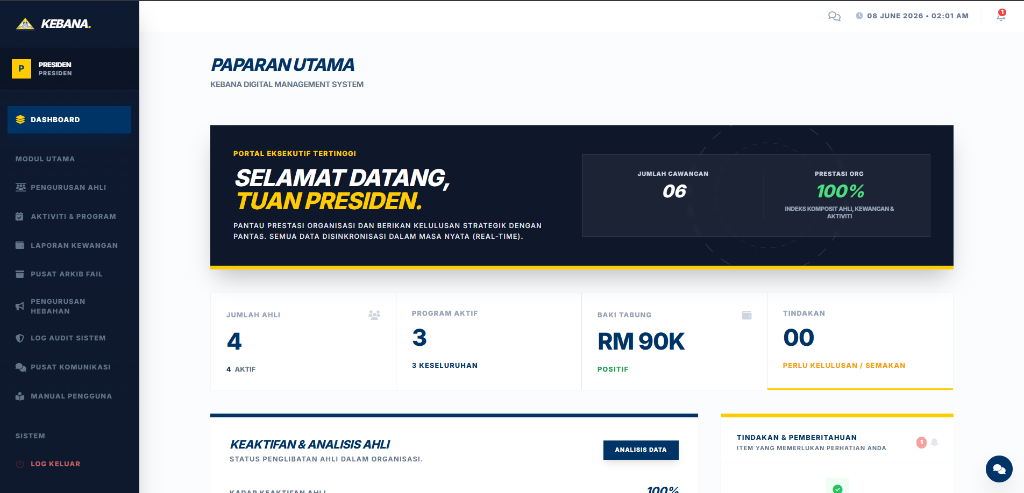
Figure 2.1: KDMS Admin Dashboard Interface
2.4 Logging Out
To securely end your administrative session, click the "Log Keluar" link located at the bottom of the left-hand navigation sidebar. This deletes your active session and redirects you to the login screen.
3. Member Management
3.1 Member Directory
Navigate to the "Ahli" menu to view the complete membership directory. Users can filter members by branch (Cawangan), search by name, or extract targeted branch records.
3.2 Add New Member
To add a member, click "Tambah Ahli Baru" on the Member List screen. You can enter details manually or utilize the advanced MyKad OCR scanning engine to accelerate details capture.
3.3 Registration Form OCR Scanning
KDMS incorporates client-side optical character recognition (OCR) using `Tesseract.js`.
How it Works
- Drag and drop a clear picture of the member's registration form/IC into the upload zone, or click to upload.
- The OCR engine initializes and analyzes the image in-browser (protecting data privacy).
- Extracted fields like Name, Email, Phone Number, IC Number, and Date of Birth are automatically populated.
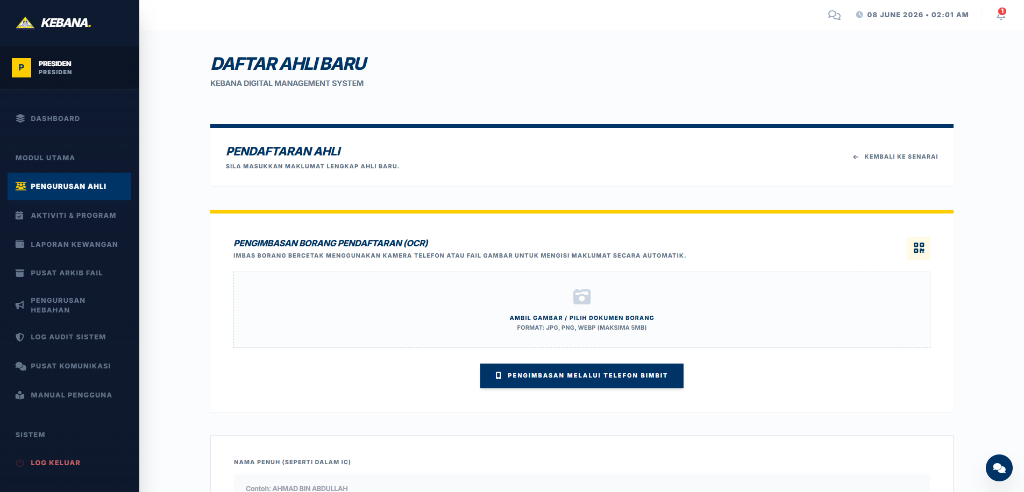
Figure 3.1: Client-side Registration Form/IC OCR scanning panel
3.4 Mobile OCR Scanning & QR Pairing
If a computer lacks a high-quality camera or scanner, administrators can click "Imbas Guna Telefon" (Scan via Phone). The system generates a QR code representing a secure mobile OCR pairing session.
Steps for Mobile OCR Pairing:
- Scan the QR code with your mobile smartphone.
- Your phone opens the public route
/mobile-ocr?token=.... - Snap a high-resolution photo of the MyKad on your phone.
- The image is sent to the server and pushed to your desktop registration screen in real-time.
3.5 Editing Members & Generating Reports
You can update member profiles by clicking "Kemaskini" beside any member listing. Under "Laporan", administrators can generate PDF summaries of branch memberships for local reporting.
4. Events & Activities
4.1 Event Catalog
The "Aktiviti" module displays all planned events, categorized by central and branch levels. It includes a Gantt chart layout that displays project schedules and event calendars.
4.2 Creating an Event Proposal
To initiate an event, the Setiausaha Cawangan or Pusat creates a proposal. On the "Cipta Aktiviti" screen, enter the event name, date, description, estimated budget, and proposed branch organizer.
4.3 The Multi-tier Approval Workflow
Event proposals undergo a strict multi-tier review process to ensure budget alignment and executive consent:
(Setiausaha Pusat)
(Presiden)
(Cawangan)
1. The Setiausaha Pusat creates a Master Event and assigns it to a specific Cawangan.
2. The proposal is automatically sent to the Presiden.
3. The Presiden reviews the event and either grants Approval (Lulus) or Rejection (Tolak).
4. Upon the decision, the system directly notifies the respective Cawangan (Setiausaha or Pengerusi Cawangan).
4.4 Attendance Tracking & Gantt Schedule
Approved events display a "Kehadiran" tab. Organizers can generate a QR code for check-in. Attendees can scan the code to load `/events/checkin` and register their presence. A visual Gantt chart displays all scheduled events and their timeline overlaps automatically.
5. Finance & Budgets
5.1 Financial Dashboard
Access the "Kewangan" module to view KEBANA's ledger summary. This dashboard displays total assets, current balance, monthly expenses, and branch funding configurations.
5.2 Transaction Logging
Treasurers log income and expenses on the "Transaksi" screen. Each entry requires specifying a transaction category, date, payment method, branch scope, amount, and receipt upload for audit traceability.
5.3 Event Budget Management
Every event features an independent sub-ledger under "Belanjawan Aktiviti". Central treasurers allocate funds to specific item lines, preventing cawangan representatives from exceeding approved allocations.
5.4 Financial Statement Exporting
Treasurers can generate complete, formatted financial ledgers as Excel spreadsheets or PDF statements. Navigate to `Kewangan -> Jana Laporan`, select start/end dates, choose a branch, and click "Jana PDF" to download the document.
6. Document Archive & AI Search
6.1 The File Archive
Under "Dokumen", administrators upload institutional records (such as meeting minutes, financial audits, proposals, and annual reports). The archive supports PDF, Word, Excel, and image formats.
6.2 AI Semantic Search & Retrieval-Augmented Generation (RAG)
KDMS incorporates a cutting-edge Retrieval-Augmented Generation (RAG) assistant utilizing the Google Gemini API to query archives in natural language:
AI Backend Architecture
- Chunk Indexing: Uploaded PDFs are parsed on the server and divided into semantic text chunks.
- Vector Embeddings: The system generates 768-dimensional embeddings using `gemini-embedding-001`.
- Semantic Queries: When a user asks a question, cosine similarity matches the query embedding with document chunks.
- Conversational Response: Closest chunks are compiled and sent to `gemini-2.5-flash` to synthesize a natural answer with citations.
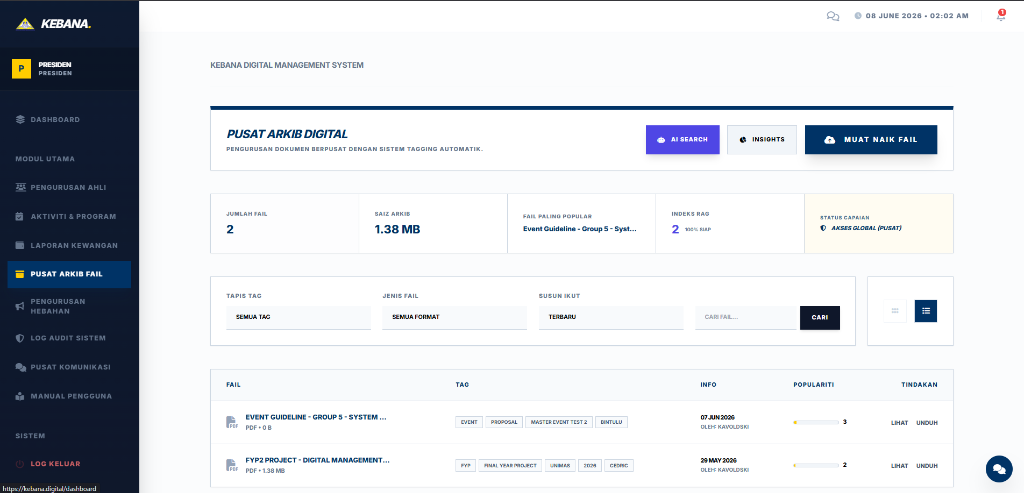
Figure 6.1: Document AI Semantic Search Sidebar Panel
6.3 Querying the Archive
Click "AI SEARCH" on the Document screen. In the query box, enter questions like: "What was the approved budget for the Youth Festival in 2026?". The system will retrieve the matching PDF chunk, display the answer, and provide a direct link to open the source document.
7. Announcements & Portal
The Hebahan (Announcements) module lets central executives disseminate critical updates to the public portal and logged-in administrators.
Publishing Updates:
- Navigate to "Hebahan" and click "Cipta Hebahan Baru".
- Provide a title, announcement content, and select the status (Active or Draft).
- Upload multiple image assets if required. Active notices are published to the public portal.
- The public landing page at
/portaldisplays announcements.
8. Chat & Notifications
KDMS incorporates communication channels to keep administrators connected:
Real-time Chat Center
Access "Sembang" (Chat) to launch the internal messaging terminal. You can initiate conversations with registered committee members across any branch and view unread counters.
Push Notification Badges
The dashboard header features a bell icon with a dynamic red badge. System events trigger notification entries (e.g., event approvals, chat messages, and database sync alerts).
9. System Administration
Super Administrators (Role 888) have administrative access to manage system configuration, users, branches, and monitor activity logs.
Administrative Features:
- Pengurusan Pengguna (User Management): CRUD user accounts, allocate system roles, and approve new sign-ups.
- Pengurusan Cawangan (Branch Management): Add and modify physical KEBANA branch nodes.
- Log Audit (Audit Log): View database changes, logins, uploads, and transactional adjustments. Logs include IP address, user timestamp, and transaction states.
10. Troubleshooting & FAQ
Q: Why does the MyKad OCR scanner fail to extract info?
A: Tesseract.js requires clear, direct, and well-lit images. Ensure the identity card is aligned flat, has no flash reflections, and text characters are readable. If scanning continues to fail, use the Mobile OCR Pairing route or enter details manually.
Q: Why can't I access the Finance module or Branch Ledger?
A: Financial access is restricted by Role-based Access Controls (RBAC). Only the Super Admin, President, Timbalan President, Bendahari Kehormat, and Bendahari Cawangan possess financial access. Contact your administrator if you need your system role adjusted.
Q: How do I re-index documents for the AI search assistant?
A: The AI Search assistant updates automatically when a document is uploaded. If an index becomes corrupt or out-of-sync, the Setiausaha or Super Admin can navigate to `Dokumen`, click "KEMASKINI INDEKS" in the admin section, and confirm. This rebuilds the semantic embedding table.
Q: Can I access this manual without an internet connection?
A: Yes. Click the "Download PDF" button at the top-right. This triggers `html2pdf.js` to compile the manual into an offline PDF document complete with cover page, formatting, and page numbers.